Ethernet Port Settings (Eth-Port Settings)🔗
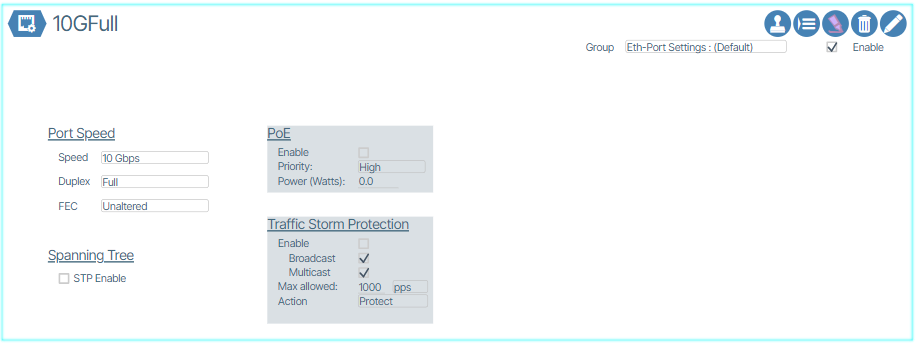
Eth-Port Settings allow the operator to define settings specific to a port related to Layer-1 and Layer-2 features such as port speed, speed/duplex negotiation, and Power-over-Ethernet (PoE).
The following figure shows the detail within an Ethernet Port Settings dialog box:
Create an Eth-Port Setting🔗
- Navigate to the Eth-Port Settings tile by clicking Templates and from the Templates tab double-click Eth-Port-Settings.
- Create an Eth-Port Setting instance by clicking the Add button (
 ).
). - In the prompt that appears, enter a name for the Eth-Port Setting.
- Apply desired settings.
- Enable the settings by clicking the Enable checkbox.
Apply an Eth-Port Setting🔗
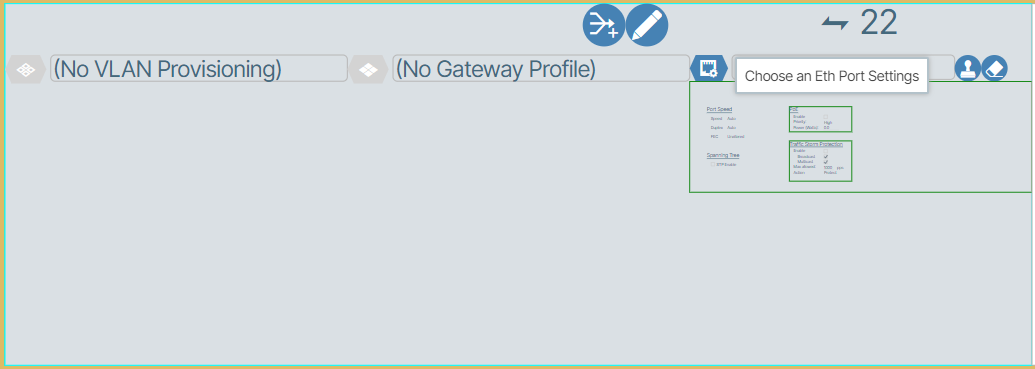
- Determine the port you wish to apply the Eth-Port Setting on.

- Open the port editing window and assign the Eth-Port Setting in the right most dropdown menu.
Additional Ethernet Port Configuration🔗
Additional ethernet port configuration options are covered in the Campus Templates section, including:
- Unidirectional Link Detection (UDLD)
- PoE settings for campus devices
- LLDP client device handling
- Loop protection features
This integrated approach provides all ethernet configuration options in a unified campus-focused workflow.